The Camera Disable Button Your Laptop Has Been Hiding From You
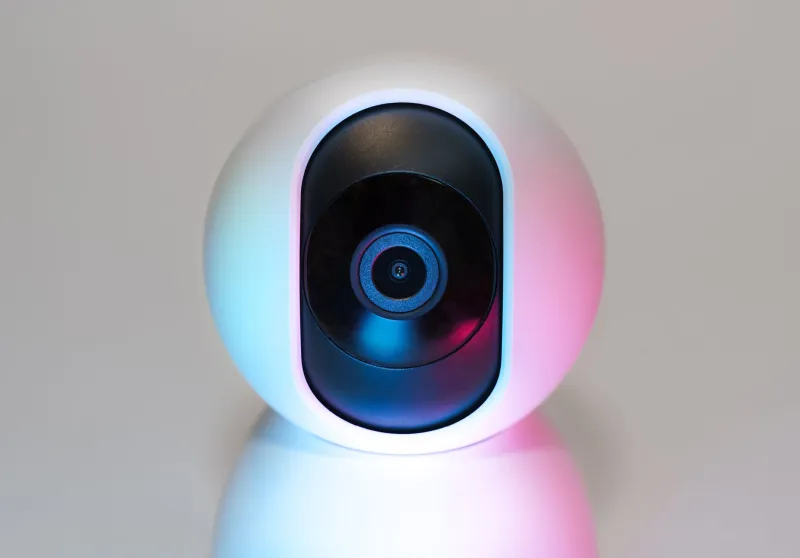
Here's a fun thought experiment: when was the last time you were 100% certain your webcam was off? Not just covered with a sticky note, not just assuming the little green light means something — actually, verifiably, hardware-level off?
For most people, the honest answer is never. And that's not entirely your fault. The tools to cut your camera feed at the source exist on a huge number of devices. They're just not exactly front and center.
There's More Going On Under That Lid Than You Think
Modern laptops — especially business-class machines from Dell, HP, Lenovo, and others — often ship with a dedicated hardware privacy shutter or a physical kill switch built right into the chassis. We're talking about a small mechanical slider that literally blocks the camera lens, or a keyboard shortcut that cuts power to the camera module entirely.
Lenovo's ThinkPad line, for example, has included a physical camera cover on many models for years. It's a tiny plastic slider sitting right above the display. Slide it over, and the lens is physically blocked — no software, no drivers, no trust required. HP's EliteBook series has offered a similar feature, and some Dell Latitude models include a dedicated privacy key in the keyboard row.
The catch? These features don't exactly come with a neon sign pointing at them. Lenovo buries the mention of it in spec sheets. Dell's privacy key isn't always labeled in a way that makes its function obvious. And if you bought a mid-range consumer laptop rather than a business model, there's a real chance your device skipped these features altogether — without telling you.
Why Manufacturers Are Weirdly Quiet About This
Here's where things get a little uncomfortable. The webcam is a selling point. Video calls, content creation, streaming — these are features manufacturers use to justify price tags and market devices. Loudly advertising a way to shut the camera off doesn't exactly fit that narrative.
There's also a software ecosystem consideration. Devices that ship with manufacturer-installed apps — think Lenovo Vantage or Dell's SupportAssist — often have their own camera management features baked in. These apps can sometimes re-enable camera access in ways that feel opaque, especially after updates. The camera might be off in your OS privacy settings, but still accessible through a proprietary driver layer that those apps communicate with.
It's not necessarily malicious. But it's also not designed with your privacy as the top priority.
External Monitors and Conferencing Gear Are a Whole Other Story
If you're using an external webcam — a Logitech, a Razer, a Dell UltraSharp monitor with a built-in camera — the situation gets murkier. Most external cameras have no physical kill switch at all. Your only options are OS-level controls, the camera's own software, or physically unplugging the thing.
High-end conferencing equipment, like the kind used in corporate meeting rooms, sometimes includes privacy shutters or mute buttons on the device itself. Logitech's Rally series, for instance, has a dedicated camera-off button on its remote. But for the average person working from home with a $79 webcam clipped to their monitor? You're relying almost entirely on software.
And software can be worked around. Malicious apps can request camera access through legitimate-looking permission prompts. Some browser-based tools have found ways to activate cameras without triggering the OS permission dialog. It's not common, but it happens.
So What Can You Actually Do?
Let's get practical. Here's how to figure out what you're working with and lock things down properly.
Step one: check your device physically. Look at the bezel around your laptop's camera. Is there a small slider or shutter? Run your finger across it. Some of these are surprisingly subtle. If your machine is a ThinkPad, EliteBook, or similar business-class model, there's a decent chance it's there.
Step two: check your keyboard. Some laptops have a function-key shortcut that disables the camera at the driver level. Look for a camera icon on your F-keys. On some HP models, it's Fn + F4. On others it varies. Your device's manual (yes, actually look it up) will tell you.
Step three: dig into your OS privacy settings. On Windows 11, go to Settings > Privacy & Security > Camera. You can toggle camera access for the entire system or on a per-app basis. On macOS, it's System Settings > Privacy & Security > Camera. Both are useful, but neither is foolproof if a compromised app has already been granted access.
Step four: consider a hardware blocker. If your device has no physical shutter, a sliding webcam cover that sticks over the lens costs about three bucks on Amazon and does exactly what it sounds like. It's not glamorous, but it's also not hackable.
Step five: audit your installed apps. Go through what's actually been granted camera access on your machine. You'll probably find a few things that have no business being on that list.
The Bigger Picture Here
The frustrating truth is that camera privacy controls exist on a lot of devices — they're just designed in a way that assumes you won't go looking for them. Business buyers get the good stuff because IT departments demand it. Consumer buyers get the lite version and are expected not to ask too many questions.
That's starting to shift a little. Growing awareness around remote work security, combined with some genuinely unsettling malware incidents over the past few years, has pushed more manufacturers to add physical shutters to mainstream consumer laptops. Apple added an indicator light to Macs that cannot be disabled even at the software level — the camera light is hardwired to the camera circuit. That's a meaningful design choice.
But until hardware-level privacy controls are standard across the board, the responsibility falls on you to know what your device has, find the controls that exist, and fill in the gaps where they don't.
Your webcam has more power than you've probably given it credit for. Time to take some of that power back.